Using Mod Variables
Overview
Mod Variables are shared across Mod Components within a Mod. For detailed information on Mod Variables, see Using Mod Variables
Example use cases/scenarios for Mod Variables are:
Fetching information from an API and displaying it in a Sidebar
Ensuring a Starter Brick runs only once per page
Fetching configuration/settings from an API
Triggers: Sidebar Panels and Triggers can be configured to run on changes to Mod Variables. Set the trigger type to "Mod Variable / State Change"
Lifetime: By default, Mod Variable values are scoped to the current frame instance. Reloading/Navigating the frame with clear the Mod Variable values. The lifetime of the Mod Variable can be configured via the Mod Variable Synchronization Policy
Setting/Assigning to a Mod Variable
To assign a value to a Mod Variable, use the Assign Mod Variable Brick in the “Store/Retrieve” Category:

In the Brick Configuration, provide a Variable Name and the Value. The Value can be of any type, and you can provide a variable.

Reading a Mod Variable
To Read a Mod Variable, use the @mod variable in a variable or template expression.
PixieBrix fills in the variable with the current value at the time the brick is run.
If the Mod Variable has not been assigned yet, it’s value will be null:

Advanced: Reading a Snapshot of Multiple Mod Variables
In certain situations, you need to use multiple associated mod variables across multiple bricks. If you access the mod variables via the @mod reference, the values may change between bricks, if another starter brick run has assigned to the mod variable.
To read a single snapshot of all mod variables, use the "Get Shared Page State" brick to assign the mod variables to a local variable. See Advanced: Using Page State for more information.
Viewing Mod Variables in Data Panel
To view the current Mod Variables in the Data Panel, view the "Mod Variables" tab in the Data Panel:

To view the Mod Variables at the time the brick was run, use the "Input" tab in the Data Panel, with View toggled to "Variables"

Async Mod Variables
Async Mod Variables keep track of a value and metadata about generating that value. Async Mod Variables have the following shape when initialized:
isLoading: true if the the brick is bricks are running for the first timeisFetching: true if the the bricks are currently runningisSuccess: true if the last brick run successfully returned a valueisError: true if the bricks threw an error, or false otherwiseerror: the error from the most recent run, or undefined if the most recent run was successfuldata: the data/result from the most recent run, or undefined if the most recent run was not successfulcurrentData: the data/result from the latest run, or undefined if the bricks are currently running
Using the Async Mod Variables includes additional metadata as part of your variable. You can reference each of these properties to track the status of the action, such as @mod.myVariableName.isLoading

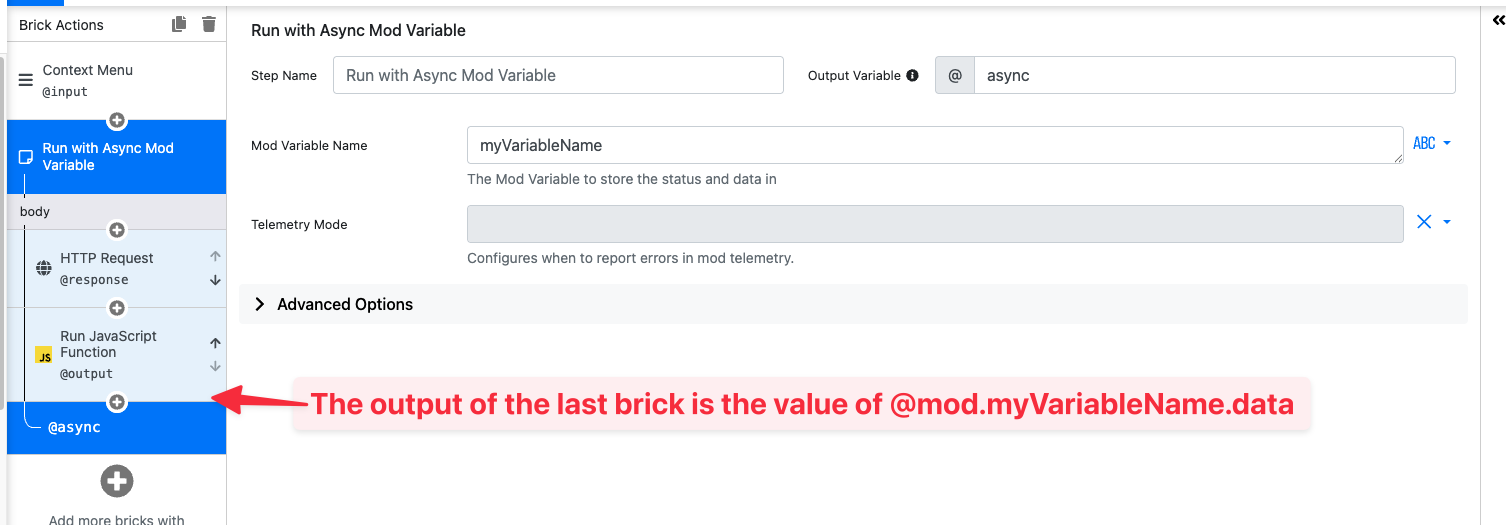
Run with Async Mod Variable
The Run with Async Mod Variable brick runs one or more bricks asynchronously, and tracks the value using an Async Mod Variable.

Run with Cache
The Run with Cache brick is similar to the Run with Async Mod Variable brick, but only re-runs the bricks if the value is stale, or the force-fetch option is true. Run with Cache has the following configuration options:
Mod Variable Name: the mod variable name to track the Async Mod Variable stateTime To Live (TTL): the expiry for the value when generating a valueForce Fetch: true to force generate the value, even if the previous value is not expired
Common Cache Use Cases:
Fetching settings from a Team Database, or Remote API
Bricks that Listen for Mod Variable Changes
Watch Out: if a Mod Variable trigger modifies a mod variable, the trigger will be re-run in response to the change. The infinite recursion can slow down the page, or cause the page to crash.
Other bricks in PixieBrix can take advantage of Mod Variables:
Sidebar Starter Brick: can re-render on changes to Mod Variables
Display Temporary Information: can be set to re-render on changes to Mod Variable
Trigger Starter Brick: can listen for changes to Mod Variables
Mod Variable Synchronization Policy
PixieBrix supports automatically synchronizing mod variables across frames/tabs. The following synchronization modes are supported:
None: mod variable is scoped to the frame. A full navigation/redirect of the frame will cause the mod variable value to be reset
Tab: mod variable is synchronized across all frames on the tab. The value persists across navigation/redirects
Session: mod variable is synchronized across all frames/tabs for the browser profile session. The value persists until you close/restart the browser profile
To set a synchronization policy, navigate to the Mod > Mod Variables sub-tab in the Page Editor. Select the synchronization policy from the Synchronization dropdown.

The Mod Variables sub-tab displays declared and inferred Mod Variables. To set the synchronization policy, you must first declare the mod variable. You can declare a inferred Mod Variable by clicking the + button.
Example Use Cases
Use Case: Showing API Data in a Sidebar
A popular PixieBrix use case is to fetch information from an API and display it in a Sidebar Panel. We recommend the following structure for the use case to support automatic + manual fetching:
Trigger: with trigger Custom Event, e.g.,
fetch-tasksSidebar Panel with trigger "Mod Variable / State change"
Trigger: Page Load or Interval, with Emit Custom Event brick to automatically emit
fetch-tasks
Example trigger to fetch tasks and assign to Mod Variable @mod.tasks:

The Sidebar Panel can reference the asynchronous variable state, e.g., to show a loading indicator or error message:

Use Case: Running a Mod Only Once
To run an mod at most once, use a Mod Variable brick to track if the mod has already been run.
Add a “Cancel Current Action” brick and specify the condition as @mod.modHasRun

Using a mod variable. PixieBrix shows a variable warning because there’s no brick that has set the mod variable yet.
Then, add a “Assign Mod Variable” brick that sets the value of the Mod Variable to true when the mod runs:

Last updated
Was this helpful?